What Is a Carousel Post? Meaning, Examples, and Best Uses
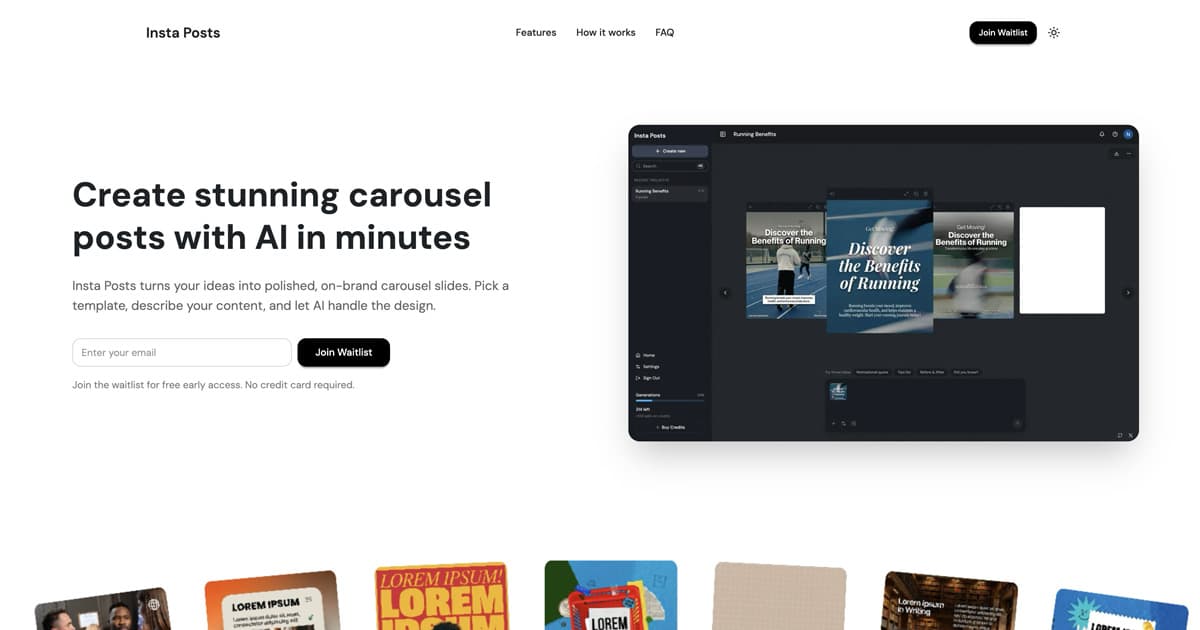
A carousel post is a social media post made from multiple slides, images, videos, or document pages that people can swipe or click through inside a single post. Instead of trying to fit one idea into one image, a carousel lets you build a short sequence: a hook, several supporting points, and a final takeaway or call to action.
Carousel posts are most common on Instagram and LinkedIn. On Instagram, a carousel is a multi-image or multi-video feed post. On LinkedIn, the classic organic carousel experience is usually created by uploading a multi-page document, most often a PDF.
This guide explains what carousel posts mean, how they work, where they perform best, and how to decide when a carousel is the right format for your idea.
Quick Definition
| Term | Meaning |
|---|---|
| Carousel post | A single social media post with multiple swipeable slides, images, videos, or pages. |
| Instagram carousel | A feed post with multiple photos or videos that users swipe through. Instagram currently supports up to 20 items in a carousel post. |
| LinkedIn carousel | A swipeable post experience usually created from a multi-page document, such as a PDF. |
| Carousel slide | One individual image, video, or page inside the carousel. |
| Cover slide | The first slide people see in the feed. It acts like the headline. |
In plain English: a carousel post is a mini presentation inside a social media post.
How Carousel Posts Work
Carousel posts work by turning one topic into a sequence. Each slide carries one part of the message, and the viewer moves through the post at their own pace.
A simple carousel structure looks like this:
- Cover slide: hook or promise
- Context slide: why the topic matters
- Main point slides: one idea per slide
- Example slide: proof, screenshot, story, or visual
- Closing slide: takeaway or next step
That sequence makes carousels useful for teaching, comparing, storytelling, and breaking down complex ideas. A single static image can make one point. A carousel can guide someone through a complete thought.
Carousel Post vs Regular Post
The main difference is depth. A regular image post is usually consumed at a glance. A carousel asks for more attention because the viewer needs to swipe or click through multiple slides.
| Format | Best for | Limits |
|---|---|---|
| Single-image post | One clear idea, quote, announcement, or visual | Not much room for explanation |
| Video or Reel | Motion, demonstration, personality, entertainment | Requires sound, editing, or longer production time |
| Carousel post | Education, step-by-step ideas, examples, comparisons, frameworks | Needs a strong slide sequence to hold attention |
Use a carousel when your idea needs more than one beat. Use a single image when the message is instantly clear. Use video when motion, voice, or demonstration matters.
Instagram Carousel Posts
An Instagram carousel is one feed post that contains multiple photos or videos. People swipe horizontally to move through the post. Instagram's own help docs describe the format as a way to share multiple photos or videos as a single post.
Instagram carousels are often used for:
- Educational tips
- Product collections
- Before-and-after transformations
- Step-by-step tutorials
- Event recaps
- Photo dumps
- Brand storytelling
- List posts
- Mini case studies
Instagram carousels work well when the first slide gives people a reason to swipe. For example, a cover that says "7 mistakes hurting your landing page" creates curiosity because the reader expects a complete list behind it.
Common Instagram carousel sizes include square, portrait, and landscape layouts. For most creators and brands, portrait slides tend to use more mobile screen space, while square slides are the safest all-purpose format.
LinkedIn Carousel Posts
A LinkedIn carousel post is a swipeable post experience built for professional content. LinkedIn's current organic carousel workflow is different from Instagram. Instead of selecting several images as a native carousel, most creators upload a multi-page document, usually a PDF, and LinkedIn displays it as a swipeable document post.
LinkedIn carousels are often used for:
- Professional how-to guides
- Industry insights
- Frameworks and checklists
- Data breakdowns
- Thought leadership posts
- Case studies
- Hiring and employer brand content
- Product education
If you are creating LinkedIn carousels, start with the specs. The existing LinkedIn carousel size guide covers dimensions, file format, slide count, PDF limits, and safe zones.
LinkedIn carousel posts are especially useful when you want to teach something in a business context. The format feels closer to a short slide deck than a photo album.
Carousel Post Examples
Here are practical carousel post examples you can adapt for LinkedIn, Instagram, or both.
1. Step-by-Step Tutorial
Example title: "How to Turn One Blog Post Into 10 LinkedIn Posts"
Slide flow:
- Hook: the promise
- Step 1: choose the source content
- Step 2: extract the main points
- Step 3: rewrite each point for social
- Step 4: design the carousel
- Step 5: publish and repurpose
- Final slide: checklist or CTA
This works because each slide has a clear job. The reader can follow the process without reading a long caption.
2. Mistakes and Fixes
Example title: "5 Carousel Mistakes That Make People Stop Swiping"
Use this when your audience knows they have a problem but does not know what to fix. Pair each mistake with a correction.
Good slide pattern:
- Mistake: vague cover slide
- Fix: make a specific promise
- Mistake: too much text
- Fix: one idea per slide
- Mistake: no final takeaway
- Fix: end with a practical next step
This format works because it is concrete and easy to save.
3. Before and After
Example title: "Before and After: A Better LinkedIn Carousel Cover"
Show the original version, explain what is weak, then show the improved version. This is useful for design, copywriting, landing pages, resumes, product pages, and social media audits.
Before-and-after carousels are effective because the value is visible. People do not need to trust the advice blindly. They can see the improvement.
4. Framework Breakdown
Example title: "The 4-Part Hook Formula for Better Carousel Covers"
Use this format when you have a repeatable method. Each slide explains one part of the framework.
Good framework carousels include:
- A simple name for the framework
- One concept per slide
- A real example
- A final summary slide
Frameworks perform well on LinkedIn because they make expertise feel organized and reusable.
5. Product Education
Example title: "How Our AI Turns a Prompt Into a Carousel"
This format works for SaaS, agencies, and ecommerce brands. Instead of making a direct ad, teach the reader how the product solves a specific problem.
Useful slide flow:
- Problem
- Manual workflow
- Faster workflow
- Product step 1
- Product step 2
- Result
- CTA
The key is to make the carousel useful even if someone does not click. That builds trust and makes the CTA feel natural.
6. Data or Insight Carousel
Example title: "What We Learned From Reviewing 100 Carousel Posts"
This is best for research, benchmarks, trends, and original observations. Each slide should reveal one finding, chart, or takeaway.
Data carousels work because they give people something to cite, save, or share.
Best Uses for Carousel Posts
Carousel posts are not only for design-heavy brands. They are useful whenever your message benefits from sequence, comparison, or explanation.
| Use case | Why carousel works |
|---|---|
| Education | Lets you explain one lesson in small, readable steps. |
| Thought leadership | Turns a point of view into a structured argument. |
| Product marketing | Shows problems, use cases, and outcomes without a hard sell. |
| Case studies | Breaks challenge, solution, and result into a clear story. |
| Templates and examples | Lets readers inspect multiple formats in one post. |
| Event recaps | Organizes highlights without flooding the feed. |
| Personal brand content | Makes expertise easier to skim, save, and share. |
If the content has multiple parts, a carousel is often a better format than one crowded image.
When You Should Use a Carousel Post
Use a carousel when the topic has enough substance for at least 5 useful slides. The best carousels usually sit between 6 and 12 slides because that gives you room to teach without feeling bloated.
Choose a carousel when:
- You need to explain a process
- You want to compare options
- You have several examples to show
- You want people to save the post
- You are teaching a professional or practical skill
- You can make each slide useful on its own
Do not use a carousel just because the format is popular. A weak idea spread across 10 slides still feels weak. Start with the reader's question, then decide whether a sequence helps answer it.
When a Carousel Is the Wrong Format
Carousel posts are not always the best choice. Sometimes the extra slides create friction.
Avoid a carousel when:
- The message can be understood in one sentence
- The topic needs motion or sound to make sense
- You only have one strong visual
- You are posting a quick announcement
- You cannot create a strong first slide
- The sequence repeats the same point without adding value
For example, a product launch teaser may work better as one strong image or short video. A detailed feature walkthrough may work better as a carousel.
How to Create a Carousel Post
You can create a carousel manually in a design tool, from a presentation deck, or with an AI carousel generator.
Manual Workflow
- Choose one clear topic.
- Write the cover slide as a specific promise.
- Outline 5 to 12 slides.
- Put one idea on each slide.
- Use readable text sizes and strong contrast.
- Export the slides in the right format for the platform.
- Publish with a caption that adds context.
Manual tools like Canva, Figma, Google Slides, and PowerPoint all work. The tradeoff is time. You need to write, design, resize, export, and check every slide.
AI Workflow
AI carousel tools like Insta Posts can turn a topic or rough outline into a complete carousel draft.
A good AI workflow looks like this:
- Enter the topic and audience.
- Generate the first carousel draft.
- Edit the hook and slide order.
- Apply your brand style.
- Export for LinkedIn or Instagram.
This is useful when you publish frequently or want to test several carousel angles before committing to a final version.
Carousel Post Checklist
Before publishing, check the basics:
- The first slide makes a clear promise.
- Each slide covers one idea.
- The text is readable on a phone.
- The sequence has a beginning, middle, and end.
- The final slide gives a useful next step.
- The format matches the platform's specs.
- The caption adds context instead of repeating every slide.
- The post links naturally to a broader content goal.
If you can remove a slide and the carousel still works, remove it. Shorter and sharper usually beats longer and thinner.
Frequently Asked Questions
What is a carousel post?
A carousel post is a single social media post with multiple swipeable slides, images, videos, or document pages. It lets creators explain a topic in sequence instead of relying on one image or one block of caption text.
What is a carousel post example?
A simple carousel post example is a 7-slide tutorial called "How to write a better LinkedIn hook." Slide 1 introduces the promise, slides 2 through 6 explain the steps, and slide 7 gives a checklist or CTA.
What is the purpose of a carousel?
The purpose of a carousel is to increase depth and interaction inside one post. A carousel can teach, compare, show examples, tell a story, or walk someone through a process one slide at a time.
Do carousel posts get more engagement?
Carousel posts can get strong engagement because they invite swipes, saves, and longer viewing time. Performance still depends on the topic, cover slide, slide quality, and audience fit. A clear, useful carousel will usually beat a generic one.
What is an Instagram carousel vs post?
An Instagram carousel is a type of post. A regular Instagram post may contain one photo or video, while a carousel post contains multiple photos or videos in one feed post.
Are carousel posts possible on LinkedIn?
Yes. On LinkedIn, the organic carousel-style experience is commonly created by uploading a multi-page document, such as a PDF. LinkedIn displays the document as swipeable pages in the feed.
How many slides should a carousel post have?
Most carousel posts work best with 6 to 12 slides. Shorter carousels are good for quick tips, while longer carousels work for detailed tutorials or case studies. Every slide should add a new point.
The Bottom Line
A carousel post is one of the best formats for turning an idea into a guided, swipeable story. Use it when you need to teach, compare, explain, or show multiple examples in a single post.
If you are just getting started, keep the structure simple: one promise, one idea per slide, one useful takeaway. Once you have the outline, you can design it manually or generate a polished first draft with Insta Posts.
Ready to create carousels with AI?
Turn any idea into a polished LinkedIn or Instagram carousel in under 60 seconds.